Practical guide
How to sync Google contacts to iPhone
Getting your Google contacts onto your iPhone takes about a minute. Here's the built-in way — and how to keep both sides in sync so iPhone contacts also save back to Google.
Quick method — iOS Settings
- Open Settings → Contacts → Accounts.
- Tap Add Account → Google and sign in.
- Turn Contacts on for the account.
Your Google contacts now appear in the iPhone Contacts app. If they don't show up, the account's Contacts toggle is usually off, or the default Contacts account isn't set to Google.
Keep it two-way and automatic
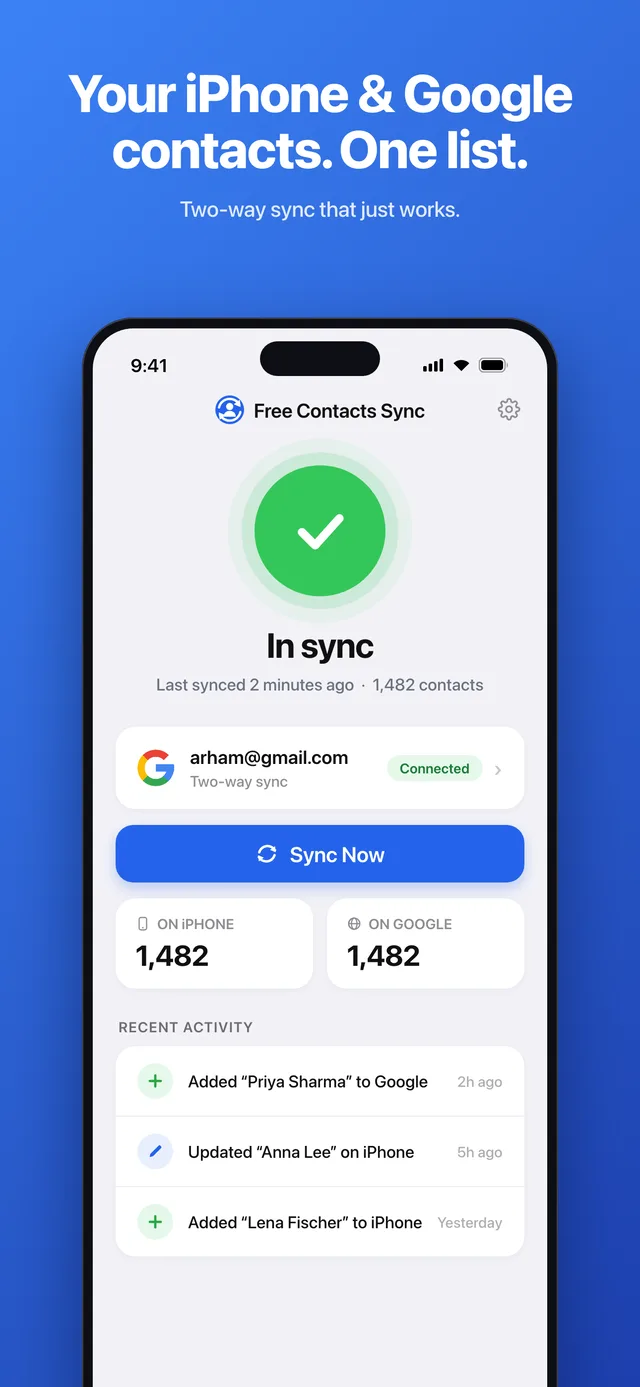
The built-in setting mostly pulls Google contacts down to the iPhone. To also push iPhone contacts up to Google — and keep both sides identical without thinking about it — use Sync Contacts for Google. It's free, two-way, private (on-device), and previews the first sync so nothing changes by surprise.
 Get Sync Contacts for Google →
FAQ
Why don't my Google contacts show on my iPhone?
Usually Contacts is switched off for the Google account, or the default Contacts account isn't Google. Turn Contacts on in Settings, or use a sync app to pull them in automatically.
How do I make it two-way?
Sync Contacts for Google copies iPhone contacts up to Google and keeps both sides identical — free and automatic.
Will I get duplicates?
No — it matches the same person on both sides and merges rather than duplicating, and previews the first sync.